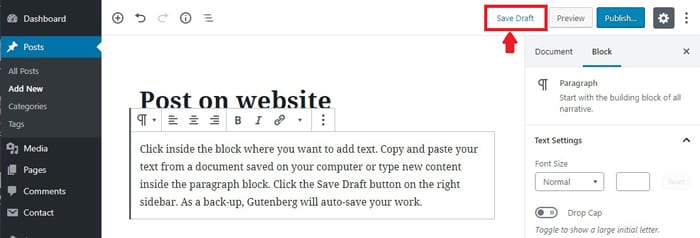
Click inside the block. Copy and paste your text from a document saved on your computer or type new content inside the paragraph block. Click the Save Draft button on the right sidebar. As a back-up, Gutenberg will auto-save your work.
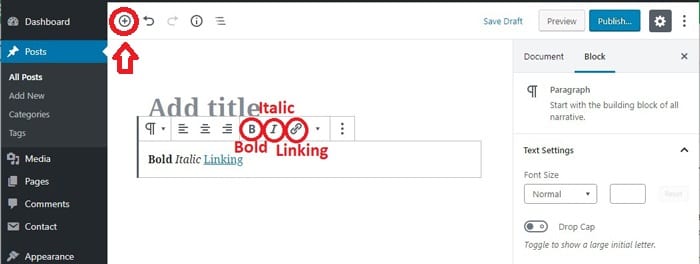
To edit the block it is similar to a Word document. Editing options appear just above the block. Formatting options include bold, italic and linking.
Quick Tip: To search for a block to add something other than text (images, PDFS files, lists, etc.) you can access the block features by using the plus sign “+” icon in the upper left corner.
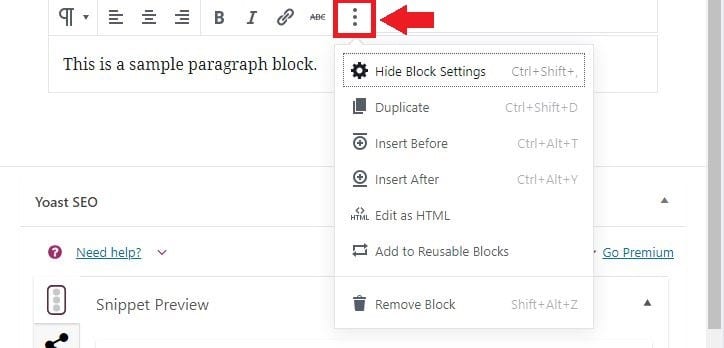
For even more settings, click the 3-dot icon at the end of the row of options.
Quick Tip: Formatting should be removed from a block of text before the text is uploaded into the text box of a website. Microsoft Notepad is a good tool to use for this process. Paste your text into Notepad, then copy and paste it into the website text box. To copy and paste, highlight the text you want to upload, click Copy under the Home tab or use a shortcut like Ctrl and C or right click the mouse and choose Copy. To Paste, click Paste under the Home tab or Ctrl and V or right click and Paste.
There is also a right sidebar that has additional formatting options to customize your content by block: alignment, font size, background color, and text color. Click the down arrow by Text Settings and Color Settings to see the additional options. Many blocks have extra settings that are only found in this area.
Quick Tip: Different blocks allow for better control of styling in each block. For example, you can highlight the text in a specific block and center the text, while formatting the other text blocks to align left. The centered text will stand out from the rest for added emphasis.