
Green Bay: (920) 826-5901
Marinette: (920) 639-5609
Marquette: (920) 393-3156
Abrams: (920) 826-5901

How To Preview Your Changes Before Making It Live

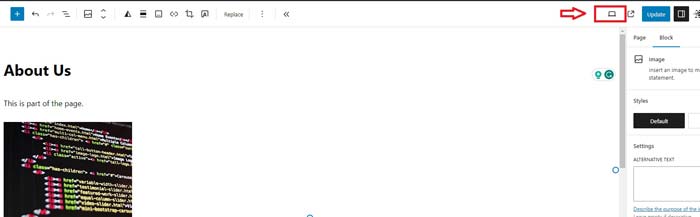
In addition to Auto Save, you can save your work as you go by clicking the Save Draft button in the upper right corner. Click the Preview button to see how your Page or Post will appear to our audience.
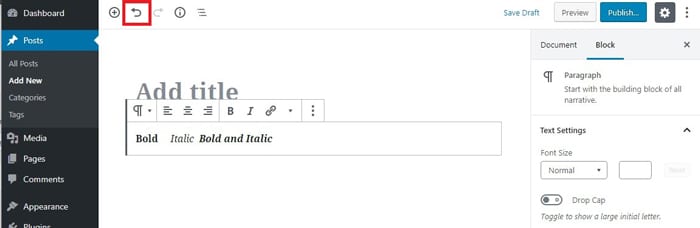
If you ever need to undo your changes, the undo button is the arrow next to the plus sign “+” icon in the upper left corner. If you make a mistake or change your mind about your text, click the undo arrow icon to undo what’s been done.
  • Quick Tip: Examples of pages are “Home,” “About Us,” and “Contact Us.” Examples of posts are information about upcoming events, stories about what’s happening in the organization, etc.
  • Quick Tip: Creating a Post or Page is similar to creating an email. An email has a subject line; a page/post has a title box. Both have a text box. Instead of a send button of an email, you’ll find a Publish or Update button.

SNAPSHOT WILL SCORE YOUR WEBSITE ON