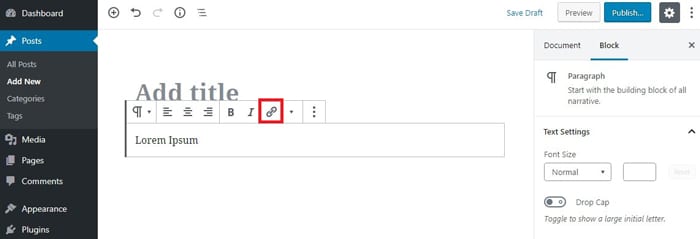
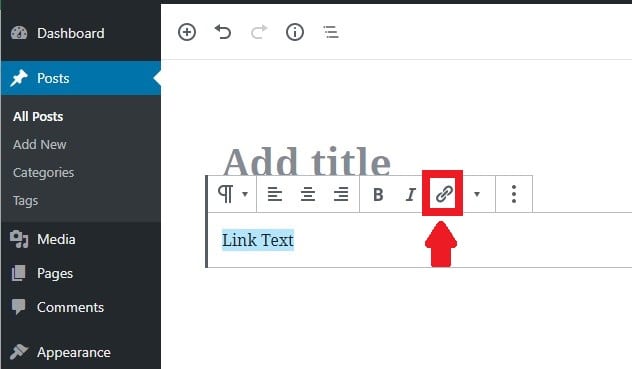
You can insert a variety of links. You can link to pages on your own website, other websites, or documents you want your visitors to access. To insert a link, highlight a word or series of words in the text box that associates with the meaning of your link. After highlighting the word/words, click the link icon above the text box.
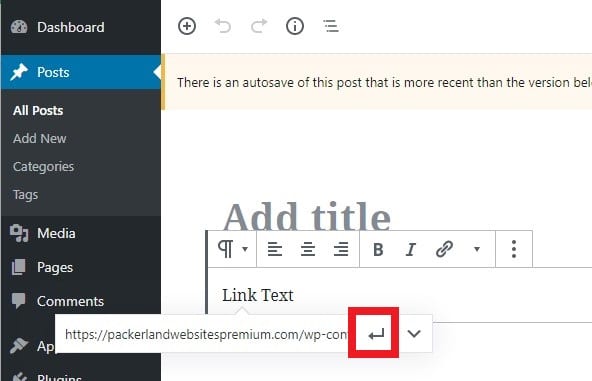
In the link box that appears, paste the URL of your link. When linking to an existing page of your website, you can search for the link by typing keywords into the search box. A drop-down menu will appear with options. Click the appropriate option.
To the right of the search box, click the 3-dot icon to access Link Settings and toggle to Open in New Tab. Open in New Tab is important because your website page will remain open to visitors when they click a link that takes them to view something else. You don’t want to send your visitors away! Here’s an exception: Links that go to pages on your website should not open in a new tab.
Click the bent “Apply” arrow. Once your link is uploaded, the link should be highlighted.
TO INSERT A LINK TO A PDF
Linking PDF to text (1 of 2 ways suggested):
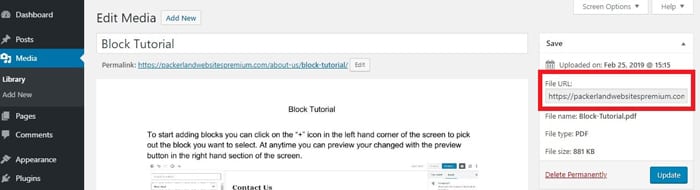
Upload the PDF to the media file (see To Add Images). Click on the file, and copy the URL of the file located in the right-side menu. Go back to the page/post where you would like to insert the PDF. Highlight the word/text, and click the link button. Paste the URL in the box and click the apply arrow. In order to make the PDF open in a new window, click the down arrow in the URL box, and click “Open in New Tab.”
Linking PDF via block (2 of 2 ways suggested):
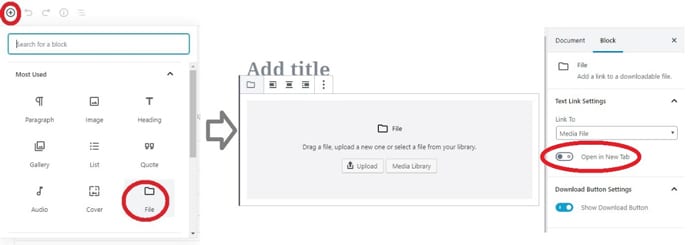
Click on the page where you want to insert the PDF. Click the plus sign “+” icon in the upper left corner (See Page 6). Select the File Block that resembles a file folder. A file image will appear on your page. Drag and drop a PDF onto the page or navigate to a PDF saved on your computer to upload it onto the page. At the Media Library, click Select.
In the right sidebar, toggle to Open in New Tab (See Insert A Link for more information.) Choose the appropriate download settings of showing or hiding the download button.